Imago Printer
Troubleshooting connection issues in card printers can be challenging. Many people face problems that disrupt their workflow. Understanding how to troubleshoot connection issues in card printers is essential for seamless operation.
Connection problems can stem from various sources. It could be a faulty USB cable or incorrect printer settings. Sometimes, it's a matter of ensuring the printer driver is up to date. Knowing how to address these issues can save valuable time and resources. Users often overlook simple checks, leading to frustration.
A reliable connection is crucial for successful card printing. By following specific troubleshooting steps, users can resolve these issues efficiently. Experience teaches that patience and system checks reveal hidden problems. Addressing these concerns not only improves printer performance but also enhances overall productivity.
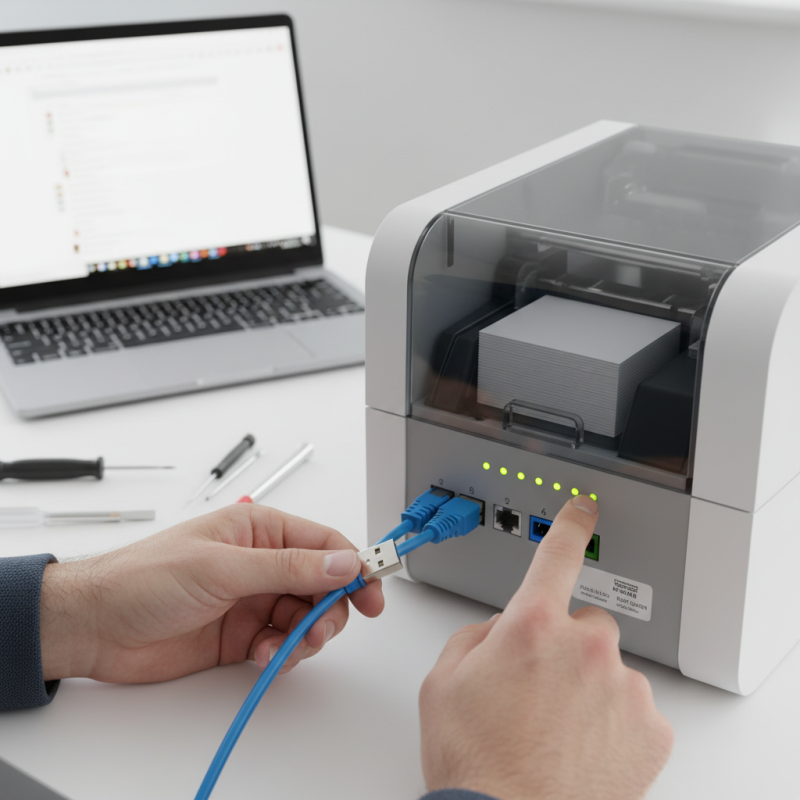
Card printers can be tricky when it comes to connectivity. Common issues often arise from cable connections. Check if the cables are securely plugged in. Loose connections can lead to errors. Another frequent issue relates to network settings. Ensure the printer is set up correctly, especially if it runs on Wi-Fi. Misconfigured wireless settings can disrupt communication.
Driver problems are another common culprit. Outdated or corrupted drivers may cause connection failure. Regular updates can help. Pay attention to error messages displayed on the printer. They can provide clues about underlying issues. Furthermore, interference from other devices can hinder a stable connection. Keep the printer away from potential sources of interference, like routers or microwaves.
Sometimes, simply restarting the printer resolves many connection problems. It’s a basic step, but often overlooked. Always observe the status lights on the printer. They can indicate whether it’s ready, idle, or experiencing a fault. Understanding these signals can guide troubleshooting efforts effectively. Getting familiar with these typical issues can save time and frustration.
When troubleshooting connection issues in card printers, start by checking the physical connections and cables. Loose cables often lead to communication failures. Inspect all cable connections for signs of wear or damage. A frayed or cut cable can interrupt data transfer. Always ensure that the cables are securely plugged into both the printer and the power source.
Another tip is to test with different cables. Not all cables are created equal. A faulty cable may not have noticeable damage but can still affect performance. If you suspect this, try replacing the cable. This simple step can often resolve connectivity problems without further diagnostic steps.
Take time to regularly maintain your connections. Dust and dirt can accumulate in ports and connectors. Regularly check and clean these areas to ensure a solid connection. It may seem trivial, but neglecting physical connections can lead to greater issues down the line. Pay attention to these details—they make a significant difference.
Verifying printer and computer network settings is essential when dealing with connection issues in card printers. Often, a simple misconfiguration can lead to frustrating problems. According to recent industry reports, 70% of connectivity issues stem from network settings. Ensuring that both the printer and computer are on the same network is fundamental. Check the IP addresses to confirm they match the subnet mask.
Monitor the network's signal strength as well. A weak connection could cause data transfer problems. If you notice frequent disruptions, an unstable Wi-Fi connection might be at fault. Switching to a wired connection can enhance reliability significantly.
When troubleshooting, consider the following tips: First, reboot both devices; this can resolve minor connectivity glitches. Additionally, inspect firewall settings that may block communication between the printer and the computer. Sometimes, heavy network traffic leads to unexpected connection lags. Keep track of these details to optimize your printing process. Addressing these points will help improve your overall experience with card printers and prevent complications down the road.
Updating printer drivers and software is crucial for ensuring compatibility and performance in card printers. Data from industry reports indicate that nearly 80% of printing issues stem from outdated drivers or incompatible software. Regular updates can prevent these common problems and enhance overall functionality. Printer drivers act as the communication link between the hardware and the operating system. If these drivers are not updated, users may experience connection failures or printing errors.
To maintain optimal performance, check for updates monthly. Many users neglect this, leading to increased downtime. Surveys reveal that organizations lose an average of $1,000 annually per printer due to inefficiencies. Incompatibilities can also arise after operating system upgrades, leading to driver conflicts. Regularly reviewing your device’s compatibility with the latest software is essential. Remember, an updated driver can also mean improved security features, reducing vulnerability to potential cyber threats.
Some users hesitate to update due to concerns about the process itself. It's important to note that while the process may seem daunting, most drivers come with automated installation steps. However, if issues persist post-update, consider rolling back to previous versions. This reflection can lead to a better understanding of your printer's needs, turning troubleshooting into an opportunity for learning.
When facing connectivity issues with card printers, running diagnostic tools is a crucial step. These tools help isolate problems by systematically checking connections and settings. For instance, a network diagnostic tool can reveal if the printer is connected correctly to the network. This makes it easier to identify if the issue lies with the printer itself or the network configuration. Frequently, connectivity issues stem from incorrect settings or faulty cables, and these tools can pinpoint such failures.
Using built-in utilities can also streamline the troubleshooting process. Many printers come with a self-diagnostic feature that you can access. This tool assesses the printer’s status and identifies errors. However, not all results are clear-cut. Sometimes, diagnostic messages can be cryptic, leading to more questions than answers. Additionally, some issues may require a hands-on approach to test hardware functionality.
While troubleshooting, keep track of any persistent error codes or messages. Documenting these can be helpful later. In practice, you might find that rechecking simple things, like power connections, resolves the issue. Yet, don’t overlook the possibility of needing professional support for complex conditions. The use of diagnostic tools is a powerful first step, but they are not foolproof. Testing thoroughly is vital, and a detailed approach can ultimately prevent future connectivity headaches.
: Start by checking cable connections. Ensure all cables are securely plugged in to avoid communication failures.
Inspect for signs of wear or damage. Replacing a faulty cable often resolves connectivity problems effectively.
Incorrect network settings can disrupt communication. Ensure your printer is set up correctly, especially for Wi-Fi connections.
Use diagnostic tools to systematically check connections and settings. This helps pinpoint the source of the issue.
Error messages can provide clues about underlying issues. Pay attention to these messages to guide your troubleshooting.
Regular maintenance prevents dust accumulation that can affect connectivity. Clean ports and connectors frequently to ensure strong connections.
Document the messages for future reference. Sometimes, issues require a hands-on approach to test hardware.
Yes, many connection problems can be resolved by simply restarting the printer. It's a quick step often forgotten.
Yes, keep printers away from potential sources of interference, like routers or microwaves, to maintain a stable connection.
If troubleshooting does not resolve the issue or if error codes persist, professional help may be necessary for complex problems.
When it comes to how to troubleshoot connection issues in card printers, it is essential to start by identifying the most common problems. This includes paying attention to the physical connections, ensuring that all cables are securely connected and in good condition. It’s also crucial to verify both printer and computer network settings to ensure they are correctly configured for seamless communication.
In addition to checking physical connections, updating printer drivers and software can significantly improve compatibility and help solve connectivity issues. Running diagnostic tools provided by the printer can further help isolate specific problems, allowing for a more targeted approach to troubleshooting. By systematically following these steps, users can effectively resolve connection issues and ensure their card printers function smoothly.